Job Detail
Define and edit scheduled jobs
This page lets you review, create, and edit a scheduled job and its settings. Jobs can execute a T-SQL query against one or more instances or run an arbitrary command on one or more agents.
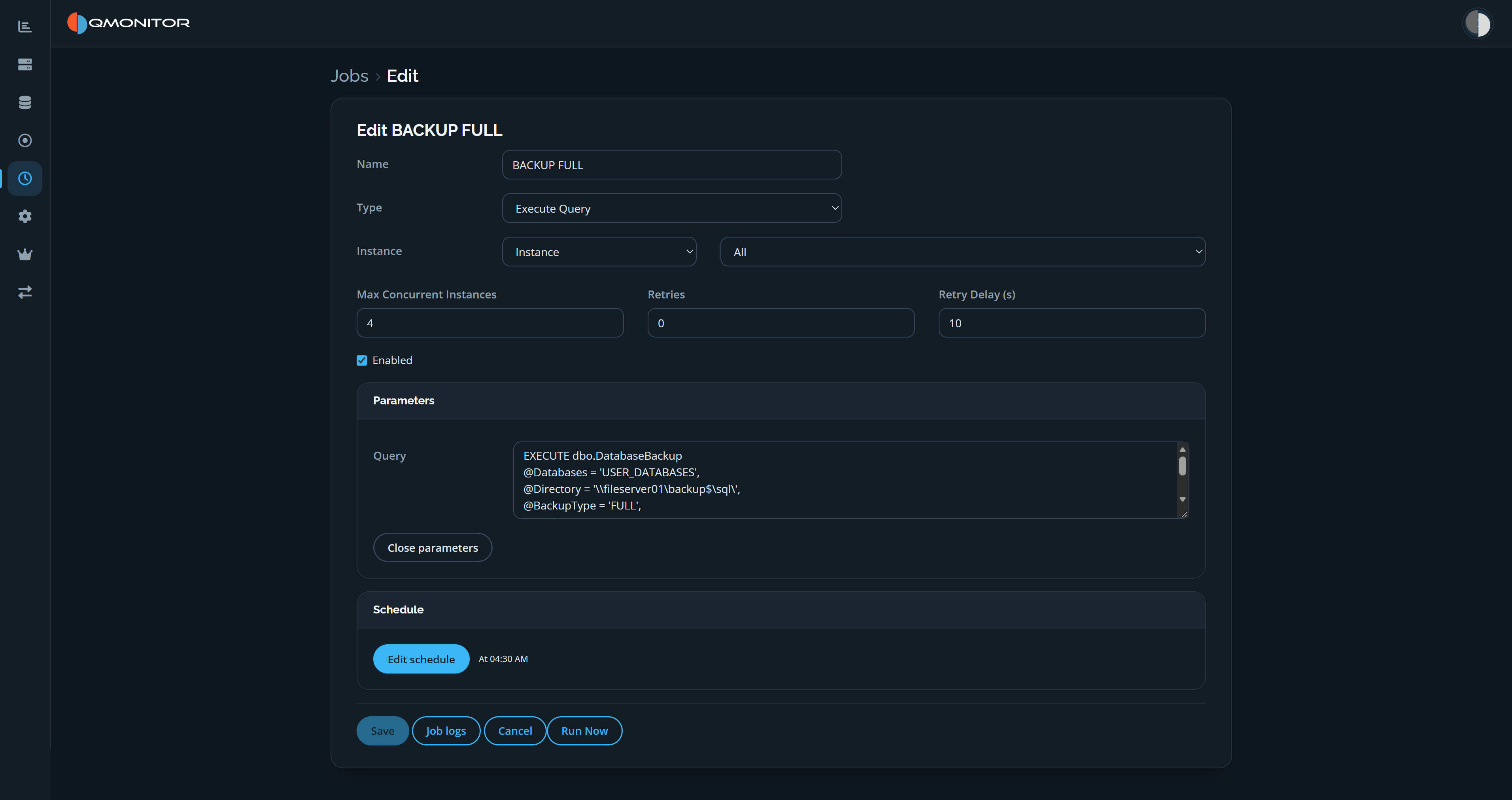 Edit Job page showing query settings, parameters, schedule, and job actions
Job properties
- Name: descriptive job name.
- Type: choose the job type:
- Execute Query — runs the specified SQL text against selected SQL instances.
- Execute Command — runs the specified command on one or more agents.
Execute Query controls
- Instance selection:
- First dropdown: choose selection mode (Instance, Instance Group, or Tag).
- Second dropdown: pick one Instance, Group, or Tag depending on the selection mode. Use groups or tags to target many instances.
- Max Concurrent Instances: maximum parallel executions:
- 1 = run sequentially (no parallelism).
- 0 = run against all selected instances in parallel.
- Choose a limit to avoid saturating CPU, I/O, or network (for example, limit concurrent backups to 5 to avoid disk flooding).
- Retries: number of retry attempts on failure.
- Retry delay (s): delay, in seconds, between retry attempts.
Execute Command controls
- Agent target: choose All Agents or select a specific agent to run the command. Commands are executed by the agent process on the host running the selected agent(s).
Common controls (both job types)
- Enabled: checkbox that enables or disables the job without deleting it.
- Parameters: editor containing the job’s query or command:
- For Execute Query jobs, the Query text runs against the target instances.
- For Execute Command jobs, the command is executed by the agent on the host.
- Schedule: click “Edit Schedule” to expand schedule settings:
- Type: Recurring or One-time.
- Cron Expression: enter a cron expression to define recurring schedules.
- Help: the Help button opens documentation that assists in crafting valid cron expressions.
- End Date: optional date when the schedule stops running.
Actions (bottom toolbar)
- Save: persist job definition and schedule.
- Run Now: immediately queue the job for execution (bypasses the schedule).
- Job logs: open the job logs page to inspect past runs and execution output.
- Cancel: discard unsaved changes and return to the Jobs list.
Notes and tips
- Use small, targeted schedules during testing and run “Run Now” to validate behavior before enabling wide production schedules.
- Restrict Max Concurrent Instances for heavy operations (backups, restores, large ETL) to prevent resource contention.
- OS commands run on the computer of the agent, with the permissions of the QMonitor Operator account (or of the agent account when it has no operator)
- Sysadmin logins
- Jobs run with the permissions of the login that executes them: grant only what the jobs need. A sysadmin login is only shown as a warning, it does not change which jobs run.
- To run jobs with a separate Windows identity, use a QMonitor Operator.
Who can see, run and edit jobs
Administrators have full access. Other users have full access too, unless they are given one or more of these roles, which then limit them to what the roles allow:
| Role | Allows |
|---|---|
| JobsViewer | see jobs and their logs only |
| JobsRunner | Run Now (not editing) |
| JobsEditor | create and delete jobs, change their name, type and SQL |
| JobsTargetEditor | change targets, schedule, retries and enabled state |
| JobsOsCommand | create, change and run OS command jobs |